Touchscreen Home view

Touchscreen Home view
Topic LCI-USG-0082, Last Updated 11/21/2025

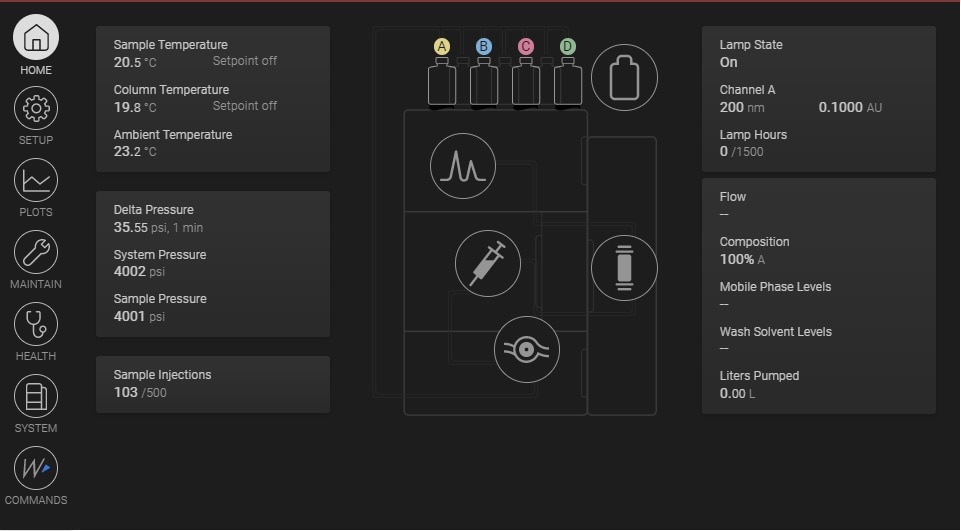
The Home view displays the real-time status of the system. The following figure shows the Home view.

Figure 1: Home view
Table 1. Home screen icons
Icon Information
Tap to display the solvent conditions dashboard, where you can view and update solvent levels and other details.
Tap to display the detector conditions dashboard, where you can view details about the lamp, flow cell, and other conditions depending on the installed detector.
Tap to display the sample manager conditions dashboard, where you can view and update sample compartment temperature and other conditions.
Tap to display the pump conditions dashboard, where you can view and update the flow rate, composition, and other conditions.
Tap to display the column heater/cooler conditions dashboard, where you can view details about the installed column and view and update the column compartment temperature.

Need Help? Connect with a Waters expert. 


To avoid risk of personal injury and to prevent damage to laboratory equipment, always operate your Waters products in accordance with the applicable operational and safety information, your organization’s standard operating procedures, and local regulations.

Refer to the English version of this page for the latest information.

Back To Top Back To Top